Moomin: Midsummer Madness: Beginner's Guide and Best Settings
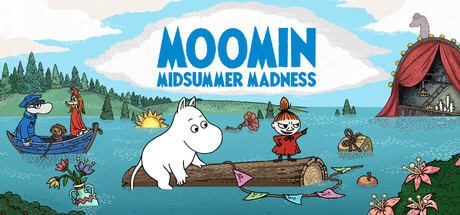
A practical start for Moomin: Midsummer Madness: exploring the flooded theatre, using hints well, protecting your saves, setting up your PC and using the Cheat Engine table.
What Kind of Game This Is
Moomin: Midsummer Madness is a single-player point-and-click adventure based on Tove Jansson's novel Moominsummer Madness. You play as Moomintroll and Little My, exploring an old theatre caught in a great flood, and the story runs across a series of chapters. Progress comes from looking closely, talking to the characters you meet and clearing the light puzzles and mini-games placed along the way.
Crossbridge Game Studios pitches it as a relaxing game for all ages, so the pace is gentle. It suits a quiet evening, playing alongside a child, or fans who mostly want time with the hand-painted backdrops and the original soundtrack. Newcomers are welcome too: the store page says the game is meant for first-time visitors to Moominvalley as much as for longtime readers.
- Expect a story told in chapters, not an open world.
- Leave the sound on; the soundtrack was composed for this game.
- Full controller support includes DualShock pads, so the couch works as well as a mouse.
Exploring the Flooded Theatre
Like most point-and-click adventures, this one rewards careful looking over quick reactions. Each time you enter a new scene, run the cursor or controller pointer across the whole backdrop before moving on. The store page promises plenty of small details for fans with a keen eye, and those details are a good place to start when you are hunting for something to interact with.
Talk to characters more than once, particularly after you pick something up or finish a puzzle. Dialogue in adventure games often changes after an event, and someone who had nothing to offer earlier may now point you in the right direction. Watch your inventory too. An object that seems pointless now will probably matter later, so try it on anything that reacts to the cursor in the next area.
- Check every corner of a new scene before leaving it.
- Return to characters after each new item or solved puzzle.
- Try inventory items on anything that reacts to the cursor.
- When stuck, go back through earlier rooms in the current chapter first.
Puzzles, Mini-Games and Hints
The puzzles are billed as beginner-friendly, and each chapter mixes them with short mini-games. If one feels unclear, slow down and study what the scene shows you; in adventures of this kind the clue is usually close by. The mini-games are designed as small victories rather than hard tests, so treat them as a change of pace.
A built-in hint system is there to keep things relaxed, and using it costs you nothing in the store material we have seen. Give a puzzle a few honest minutes, then take a hint instead of clicking at random. The November 18 update fixed hint progress not saving properly, so if your hints seemed to reset earlier, check that the game is up to date.
- Spend a few minutes on a puzzle, then use a hint rather than brute-forcing it.
- Update the game if hint progress was not saving before November 18.
- Treat mini-games as short breaks between story scenes.
Saves, Achievements and Known Fixes
The game supports Steam Achievements and, since the November 18 patch, Steam Cloud, which helps if you play on more than one PC. That same update added macOS support. Family Sharing is listed as well, a sensible fit for a game meant for different people in one household.
Recent patch notes cover a few early problems. On November 20 the developer fixed the Jack of All Games achievement not unlocking, and its progress now saves after you exit. That patch also closed a Chapter 4 bug that let you reach an adjacent area from the rooftop. Two days earlier, a fix went in for the Shell disappearing from the inventory in Chapter 5 under certain conditions. If you ran into any of these on an older build, update first.
- Let Steam keep the game updated to get the save and achievement fixes.
- Quit through the game normally so achievement progress is saved.
- If the Shell went missing in Chapter 5 on an older build, update before carrying on.
- Copy your save folder before major patches for extra safety.
PC Settings and Performance
Minimum requirements are 64-bit Windows 10, an Intel Core i5-3570K or AMD equivalent, 8 GB of RAM, a GeForce GTX 780, DirectX 11 and 3000 MB of storage. The recommended spec moves the processor up to a Ryzen 7 1700X and the graphics card to a GTX 1070, with memory unchanged at 8 GB. Neither list is demanding by current standards.
The store listing does not detail the graphics options, so work with what the settings menu provides. Near the minimum spec, drop the resolution first, then any quality preset or effects, and cap the frame rate if the fans get loud; a slow-paced adventure gains little from very high frame rates. At the recommended spec, native resolution and the top preset should be a reasonable starting point. On a laptop, plug in and close background apps before you play.
- On weaker hardware, lower resolution before anything else.
- Cap the frame rate on laptops to cut heat and fan noise.
- Keep at least 3 GB free on the drive, plus space for updates.
- Update your graphics driver if you see stutter or crashes.
Using the Cheat Table
Download Cheat Engine only from its official website, since repackaged copies elsewhere can bundle unwanted software. Start the game, open the .CT file in Cheat Engine, click the process selector and attach to the game's process. Tick the box beside an entry to switch it on, or use its hotkey if one is set. Change values gradually and test each entry alone before stacking them.
For a relaxed run, Unlimited Hints and Freeze Minigame Timer are the most useful, keeping help on hand and removing pressure from any timed mini-game. Movement Speed and Game Speed cut down walking and waiting. Save Position and Load Position let you mark a spot and jump back to it. Keep Inventory Items protects against losing items, though updating already fixes the known Shell bug. Fly Mode, Jump Height and Edit Collectibles can push you outside intended areas or progress, so save first. The game is single-player only, so the table affects nobody else.
- Back up your save files before switching on any entry.
- Enable one entry at a time and confirm it works.
- Use Save Position before trying Fly Mode or Jump Height so you can get back safely.
- Consider turning off Steam Cloud while experimenting so a broken save does not sync.
FAQ
Can I get stuck in Moomin: Midsummer Madness?
The puzzles are designed for beginners, and the built-in hint system covers any challenge that holds you up. If hints were not saving for you, update the game; that was fixed on November 18.
Why didn't the Jack of All Games achievement unlock?
A bug blocked the achievement and stopped its progress from saving after you exited. The November 20 update fixed it, so update the game and quit normally after each session.
Does the game support controllers and cloud saves?
Yes. It has full controller support, including DualShock controllers, and Steam Cloud support arrived in the November 18 patch.
Will it run on an older PC?
The minimum spec is an i5-3570K class processor, 8 GB of RAM and a GTX 780 on 64-bit Windows 10. If your PC is close to that, lower the resolution first and cap the frame rate.
Is it fine to use the cheat table?
The game is single-player, so the table only changes your own playthrough. Back up your saves, get Cheat Engine from its official site, and save before using entries like Fly Mode that can take you outside normal areas.
Cheat table and game page
Moomin: Midsummer Madness Cheat Table · Moomin: Midsummer Madness
Comments
No comments yet
Be the first to share your thoughts.